
Pricing
Pricing editor
Where you set how a product is priced.
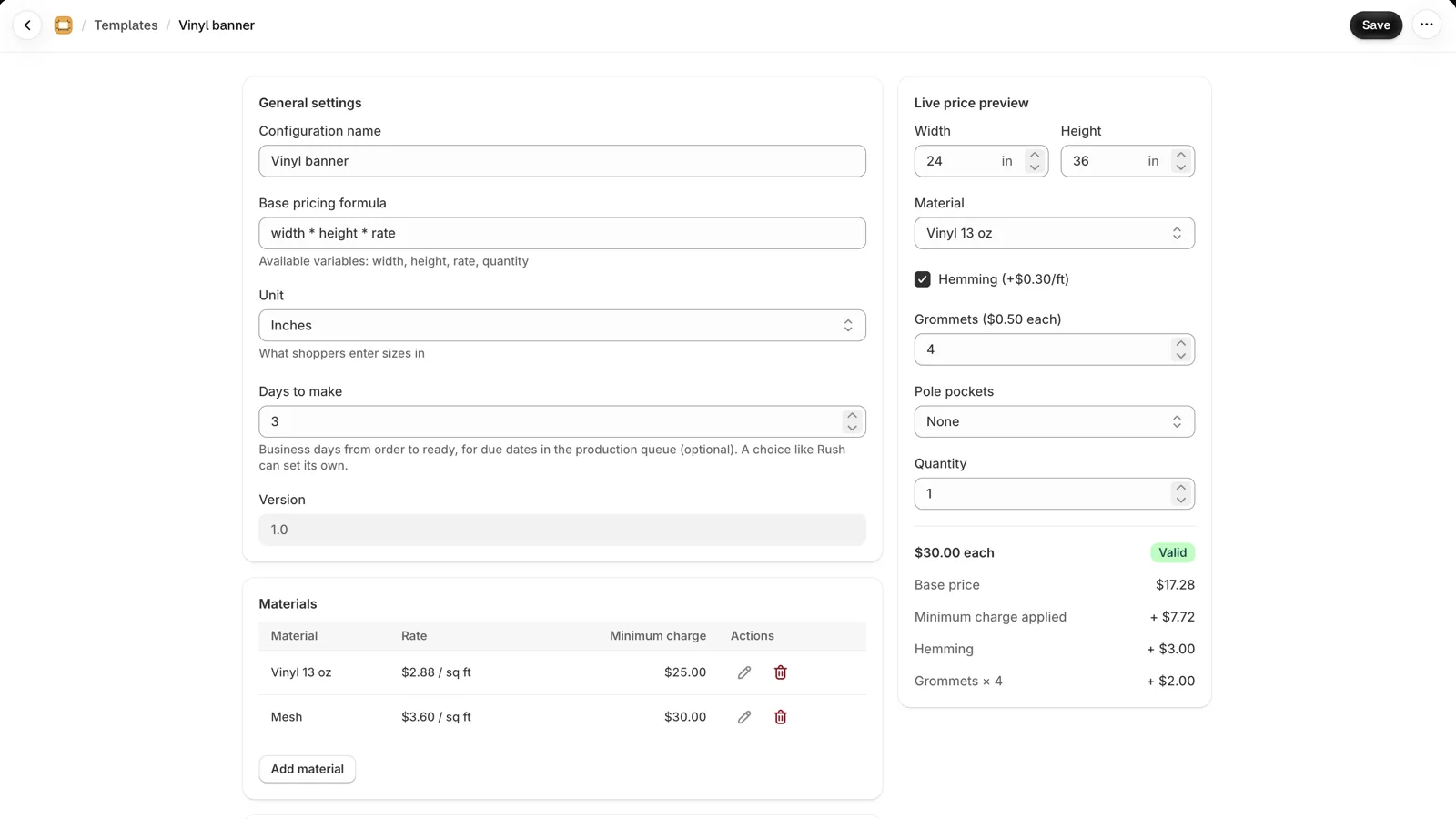
Go to Products and click a product. If it has no pricing yet, click Create configuration. The editor has seven sections (eight with a price table) on three tabs, with a Live price preview beside them that updates as you edit. Click Save when you're done: one Save covers every tab.
If a product uses a template, its editor shows a banner instead of the form: change the pricing in the template, or click Detach to customize to give this product its own copy.
The tabs and sections
The form is split into tabs under the page title. A dot on a tab means it has changes you haven't saved. If Save finds a problem, it opens the tab that holds it. To link straight to a tab, add ?tab=options or ?tab=rules to the editor's address.
| Tab | Section | What it's for |
|---|---|---|
| Pricing | General settings | The name, what it's priced by, the pricing formula or a price table, the size unit and days to make (below) |
| Options | Sizes | Whether shoppers type the size, pick it from a list, or either. See Sizes from a list. |
| Pricing | Materials | What the item is made of, and its rate per area (or per length). See Materials. |
| Pricing | Price table | With a price table only: each material's prices by size band. See Price tables. |
| Options | Add-ons | Extras shoppers choose. See Add-ons. |
| Rules & limits | Pricing rules | Fees, multipliers and discounts on conditions. See Pricing rules. |
| Rules & limits | Quantity breaks | Volume discounts. See Quantity breaks. |
| Rules & limits | Input validations | The size range shoppers can enter. See Size limits. |
General settings
- Configuration name
- For you only, e.g. "Custom Aluminum Sign".
- Priced by
- Area (width × height), the default, or Length: shoppers enter one length, for things sold by the foot or metre such as rope, hose, fencing, trim or troughs. See Products priced by length.
- Price from
- Formula, the default, or Price table: your supplier's prices by size band, pasted from a spreadsheet, with no formula or rates. See Price tables.
- Base pricing formula
- The default is
width * height * rate: the area times the material's rate (length * ratefor a product priced by length). See the formula below. - Unit
- What shoppers enter sizes in: Inches, Feet, Centimetres, Millimetres or Metres.
- Inch fractions
- Inches only. Shoppers type whole inches and pick a fraction beside them, such as 35 and 3/8, to the nearest half, quarter, eighth or sixteenth. The cart, checkout and the order get the size as a decimal (35.375); the production queue and job tickets show it as 35 3/8. Leave it at None to have shoppers type decimals.
- Days to make
- Optional. Business days from order to ready, for due dates in the production queue. A choice like Rush can set its own.
If you change the unit later, size limits and rules keep their numbers: 48 then means 48 cm. Check them after. Changing what a saved product is priced by asks first: carts that already hold it need it added again.
The formula
You can use width, height and perimeter (2 × (width + height)), or length on a product priced by length; rate (the chosen material's rate), quantity, each add-on by its key, and numbers, with + - * / ^, comparisons, and, or, not, a ? b : c, and min, max, round, ceil, floor, abs and sqrt.
An add-on reads as what the shopper chose: a Yes / no add-on as true or false, a Choose-one add-on as its choice's key (finish == 'gloss', 'none' when nothing applies), a Number add-on as its count. The field's help lists the keys.
| Formula | Charges |
|---|---|
width * height * rate | The area at the material's rate |
ceil(width) * ceil(height) * rate | Whole inches (or whatever the unit is) |
width * height * rate + 15 | The area plus a $15 setup fee |
width * height * rate * (laminate ? 1.2 : 1) | 20% more with the Laminate add-on |
Products priced by length
Set Priced by to Length. Shoppers then enter one size, "Length (ft)", and the cart, checkout, orders, the production queue and job tickets show it. Material rates are per length (per ft, in, cm or mm), add-ons priced Per length run the full length, and rules and size limits read length.
| Formula | Charges |
|---|---|
length * rate | The length at the material's rate per foot |
length * rate + (cover ? 4 * length : 0) | Plus $4 a foot for a cover over the full length |
length * rate + (cover ? (length > 20 ? 3 : 4) * length : 0) | The cover at $4 a foot, $3 a foot from 20 ft |
A cover priced simply per foot is easier as an add-on with a Per length price; use the formula, or a rule with a formula amount, when its price per foot changes with the length.
Use quantity breaks for volume pricing rather than putting quantity in the formula. The product page prices the quantity in your theme's quantity box either way, but only breaks get the "Buy more, save" table with a price at each quantity.
Sizes from a list
On the Options tab, in Sizes, choose how shoppers give the size:
- Shoppers type the size
- The default: width and height (or a length), within your size limits.
- Shoppers pick a size from a list
- The product page shows a Size dropdown of the sizes you list, such as 2 × 2, 3 × 3 and 4 × 4, and starts on the first. Checkout refuses any other size.
- Shoppers pick a size from a list, or type their own
- The list ends with Custom size, which brings back the size fields. A typed size keeps to your size limits; a listed size is valid whatever they say.
Each size has its width and height (or length), an optional name shoppers see instead ("Small"), and an optional number your formula reads as size_number: 0 for a custom size.
Numbers on choices
A Choose-one add-on's choices can have a Number too. The formula reads the chosen one's as the add-on's key followed by _number: pack_number for an add-on with the key pack. The add-on's own key still reads as the choice's key, so rules that compare it keep working.
A sticker shop selling 2 × 2, 3 × 3 and 4 × 4 at $1, $2 and $3 each, in packs of 10, 100 or 1000:
| Setting | Value |
|---|---|
| Sizes | 2 × 2 (number 1), 3 × 3 (number 2), 4 × 4 (number 3) |
Add-on "Quantity", key pack | Choices 10 stickers (number 10), 100 stickers (number 100), 1000 stickers (number 1000) |
| Formula | size_number * pack_number: 3 × 3 in a pack of 100 is $200 |
Rules can test the numbers too: Size number and Quantity number are in a rule's field list.
A required choose-one add-on may start on its cheapest choice, here the pack of 10: shoppers pick bigger packs themselves.
Live price preview
Enter a size, material, add-ons and quantity to see the price and its breakdown as shoppers will, before you save. If something in the configuration can't be priced, the preview names it, for example "Rule 1: check its amount."
Save as template
Once saved, Save as template turns this product's pricing into a template other products can use. This product then follows the template.
Removing pricing
Remove pricing turns Trimsize off for the product. It then sells at its Shopify price, and the product page no longer asks for a size. Orders already placed keep their prices.